I am not familiar with macOS
want to know how I can right-click and left-click on a MacBook Pro
Perhaps, just like I do on a Windows PC?
You can right-click on the MacBook Pro with the mouse, Trackpad, and keyboard shortcuts.
For example, you can press the Control key and single click with the Mouse or tap on the Trackpad with a finger to right-click on your Mac.
You can read this detailed post to learn how to right-click on Mac: 5 Easy Ways to Right-Click on A Mac or MacBook
1 Like
The trackpad of the MacBook is made to be easy to operate. The trackpad on a macOS laptop is entirely buttonless, which may be useful for those who are new to Apple products.
Conventional Windows laptops feature distinct buttons for left and right clicks.
On a MacBook, you can do a left click without using the dedicated left click button by simply using your finger to click anywhere on the trackpad, rather than only on the left side of its surface.
The procedure is same while utilizing the Apple mouse; to execute a left click, just press down on the mouse.
1 Like
Very detailed post, I know how to right-click on Mac after reading it! love u! 
Got it! Thank you! Have a good day!
I want to give a final summary of how to right-click and left-click on a MacBook Pro.
 Right-click on a MacBook Pro:
- Access Apple menu > System Settings > Trackpad.
- In the Point & Click section, you’ll see the Secondary click option, which stands for right-click. Here, choose a way you want to right-click on your MacBook Pro.
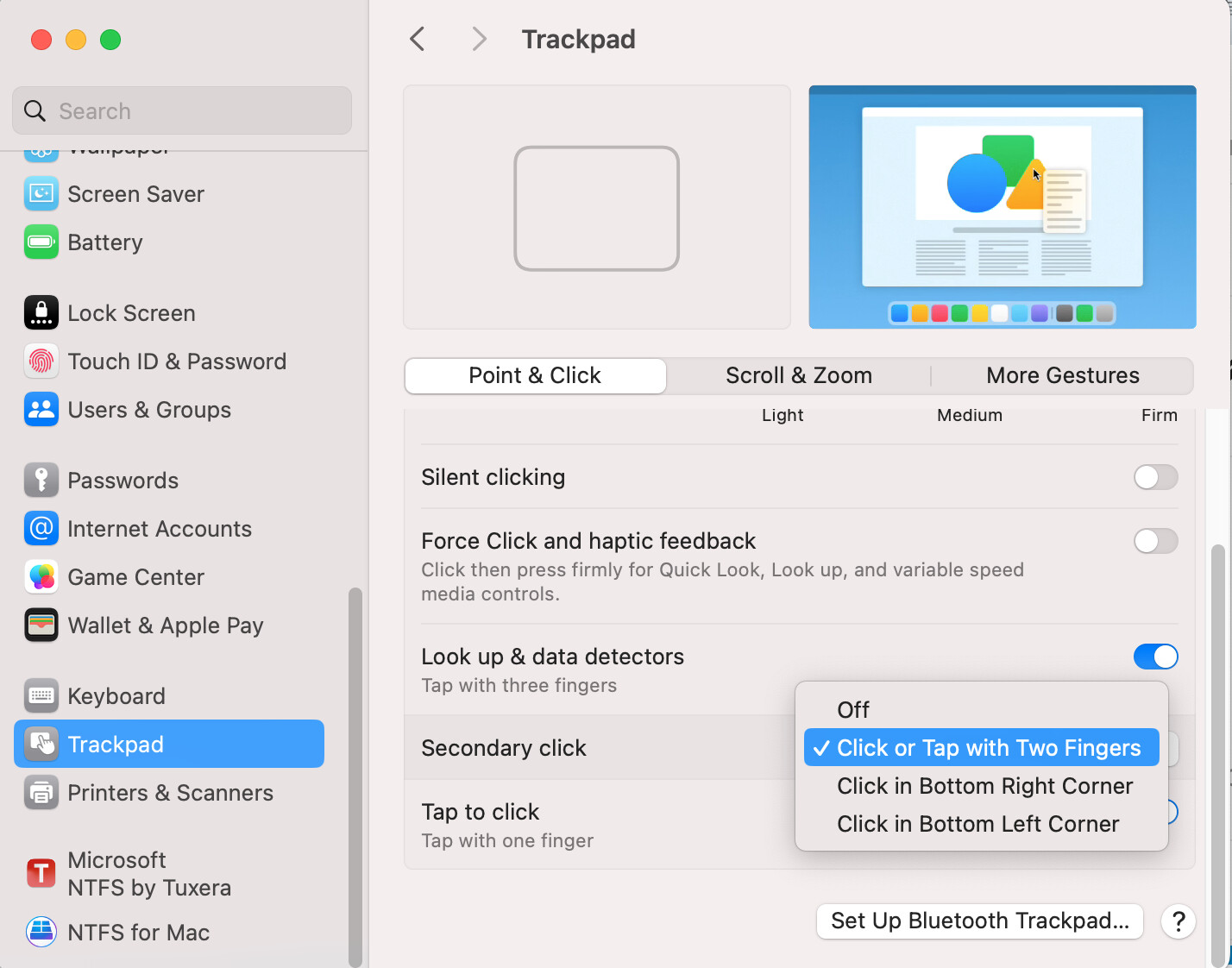
Left-click on a MacBook Pro
In the Trackpad settings, enable the Tap to click button.
Then, you can tap on the Trackpad to left-click on your MacBook Pro.
I’m new to macOS, too. I was used to right-clicking to create, copy, and send files on my Windows PC. However, all these are unavailable on a Mac device.
Luckily, my friend recommended a right-click enhancer - iBoysoft MagicMenu.
This tool supports right-click to create new files, such as DOC, PPT, XLS, TXT, etc. Moreover, it allows you to right-click a target file and copy or move it to target folders and external hard drives.
Here’s how:
Download iBoysoft MagicMenu and then install and open it.
Right-click the blank area on the desktop or Finder, click New File, and choose your desired file type to create a new one.
Right-click a file on your Mac, select Copy To, and choose a destination to copy the file to.
Right-click a file on your Mac, choose Move To, and select a destination to move the file to.
It also has other common right-click options that macOS doesn’t pre-install, like cut, and adds multiple functions to simplify your workflow.
I find that I can’t right-click on my Mac. Any suggestions? Thanks.
How do you right-click on your Mac? Did you right-click on your Mac using the mouse or the trackpad?
If you right-click on your Mac with a mouse, check if your mouse is connected to your Mac properly.
To fix the right-click that’s not working on a Mac, you need to do a series of checks and fixes.
- Check the mouse connection (if you use it)
For a wired mouse, unplug it and then reconnect it to the USB port on your Mac or the USB hub.
For an Apple Magic Mouse, check if you’ve turned on the button at the bottom of the mouse. Then, go to Bluetooth settings to check if it is paired. If it is not, pair it to your Mac. If it is paired, you can disconnect the mouse, turn off Bluetooth, and then re-pair the mouse with your Mac.
-
Reset the Trackpad or mouse settings
Go to System Settings, select Trackpad or Mouse, and reset the right-click related settings. -
Restart your Mac
This trick can drive away the system issues that make your right-click not work.
Of course, it can’t be excluded that your trackpad or mouse is damaged. You can try left-clicking with it to verify it is broken.