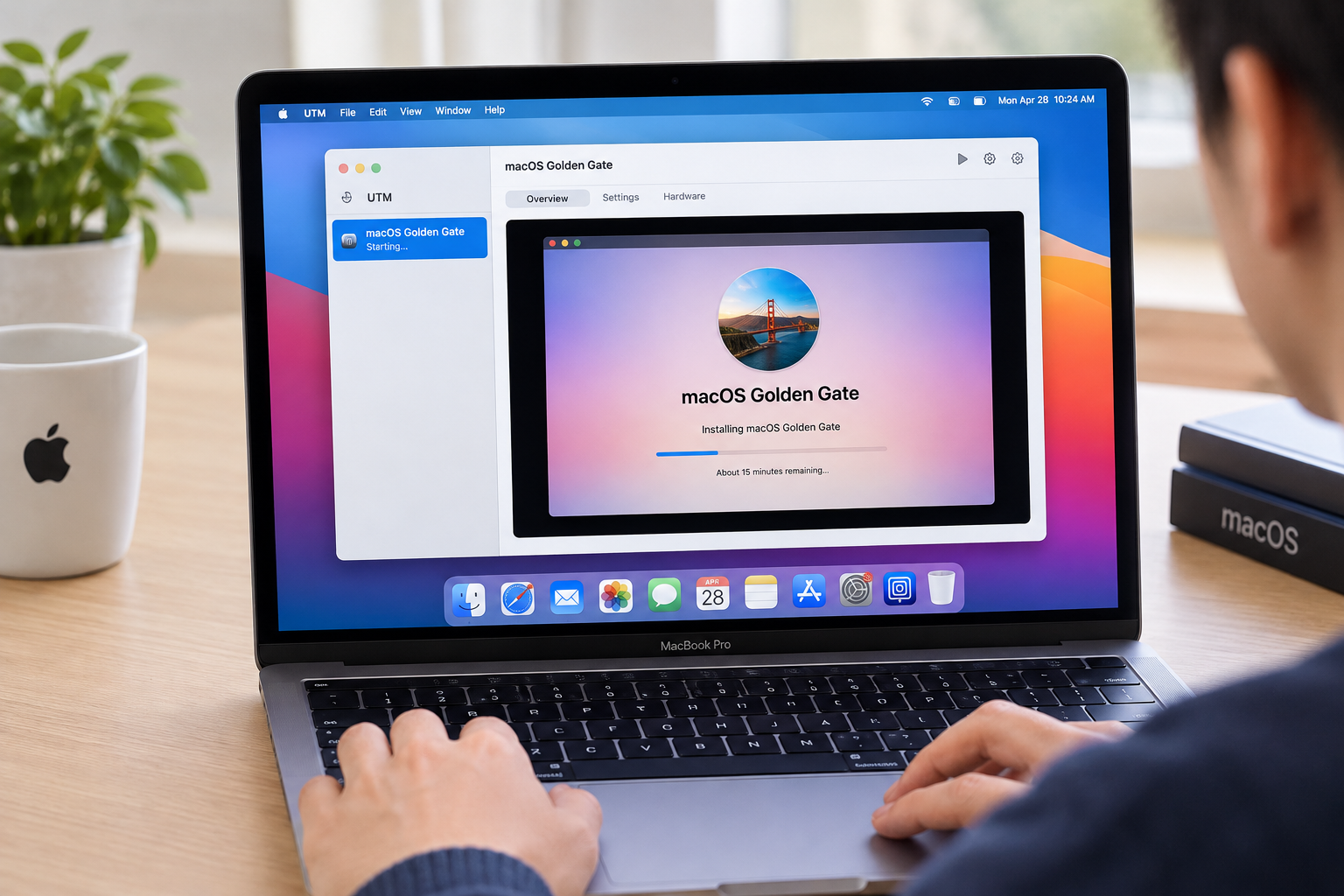
Want to try macOS 27 Golden Gate without replacing your current macOS installation? You can install it in a virtual machine using UTM, allowing you to run a separate macOS environment on a compatible Mac.
This guide walks you through downloading the macOS Golden Gate IPSW file, creating a virtual machine in UTM, configuring its resources, and completing the installation. You'll also learn how to manage disk space before setting up a virtual machine and how iBoysoft DiskGeeker for Windows can help free up space on a Windows PC.
Requirements for Installing macOS Golden Gate on UTM
Before getting started, make sure you have the following:
- An Apple Silicon Mac: UTM supports macOS virtualization on Apple Silicon Macs. This installation method is not available on Intel-based Macs.
- A compatible host operating system: Your Mac must run macOS 12 or later for UTM's macOS virtualization support.
- The latest version of UTM: Install an up-to-date version to improve compatibility with current macOS releases.
- The macOS Golden Gate IPSW file: Download the appropriate IPSW file before creating the virtual machine.
- Sufficient storage: A virtual disk capacity of 100 GB or more is a practical starting point for general use. The actual space consumed will grow as you install applications, download files, and update macOS.
- Sufficient memory: Allocate enough RAM for the virtual machine without leaving too little for the host Mac. For a Mac with 16 GB of RAM, 4–8 GB may be a reasonable starting allocation, depending on your workload.
Once you've checked these requirements, follow the steps below.
How to Free Up Space on Your Mac for the macOS Golden Gate virtual machine
Before installing macOS 27 Golden Gate in UTM, make sure your Mac has enough free storage. The virtual machine needs space for the guest operating system, applications, updates, and files. As you continue using the virtual machine, its storage usage may grow, so starting with sufficient free space helps prevent storage shortages later.
If your Mac is already running low on storage, identifying what's taking up space is a good first step. Deleting files you no longer need can make room for the virtual machine while leaving your existing macOS installation and personal files intact.
Why Choose iBoysoft DiskGeeker for Mac?
iBoysoft DiskGeeker for Mac helps you identify space-consuming files and remove unnecessary data without having to inspect every folder manually.
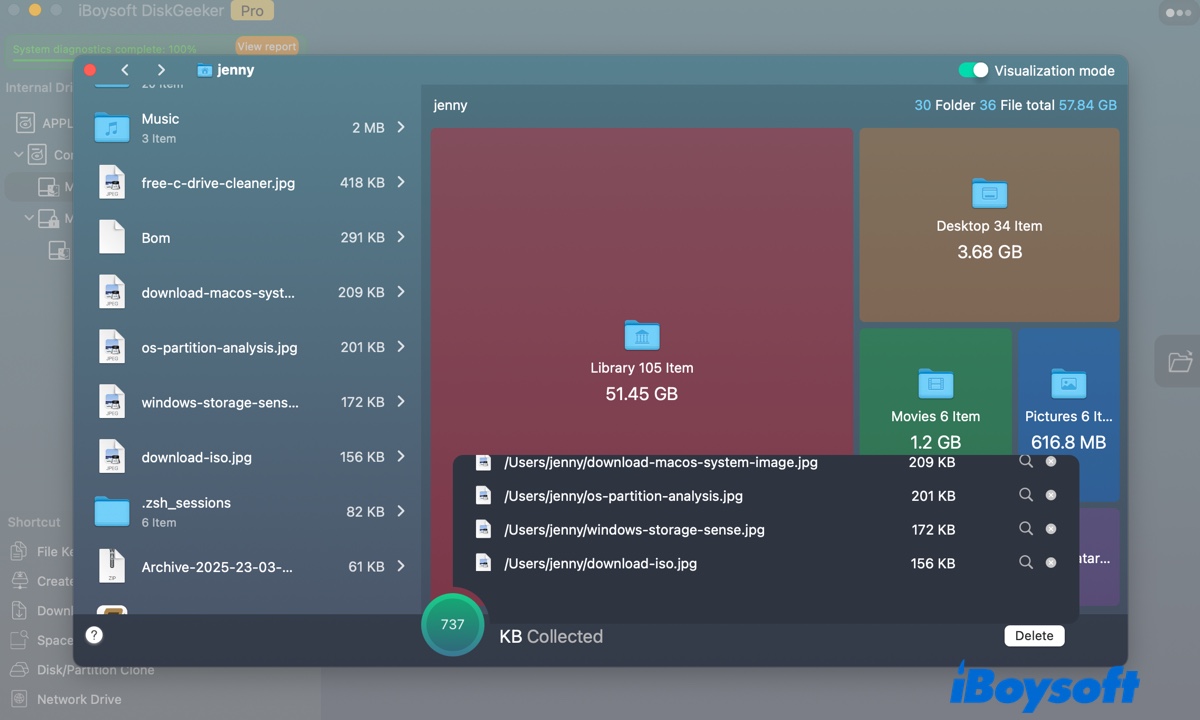
Its disk space analysis feature can switch to a visual view that displays files and folders in descending order of size. This makes it easier to spot large items at a glance and determine which files or folders are consuming the most storage. You can then review these items and decide whether they can be deleted.
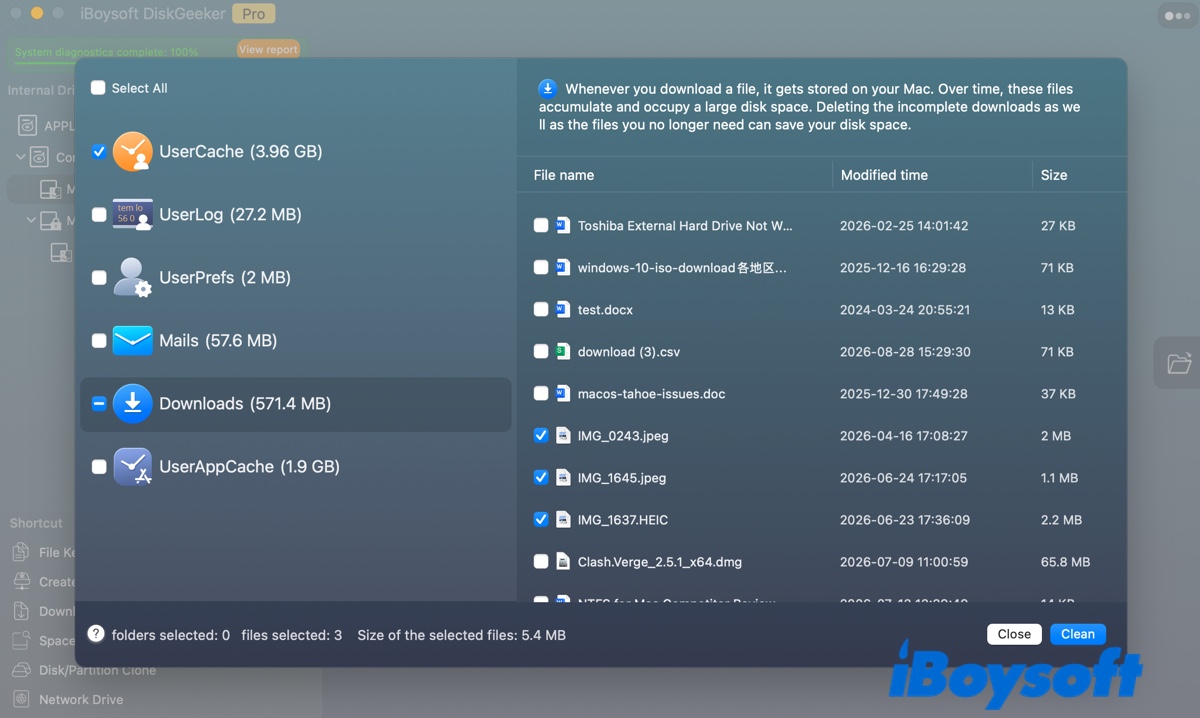
The software can also scan your Mac for junk files, including supported caches, logs, preference files, mail-related files, downloads, and application caches. After the scan, you can select specific files for deletion, giving you control over what gets removed rather than requiring you to delete everything identified by the scan.
Steps to Free Up Mac Storage with iBoysoft DiskGeeker:
Step 1. Download and open iBoysoft DiskGeeker for Mac.
Step 2: Choose the data volume from the left (Macintosh HD - Data) and click Scan next to Clean Junk.
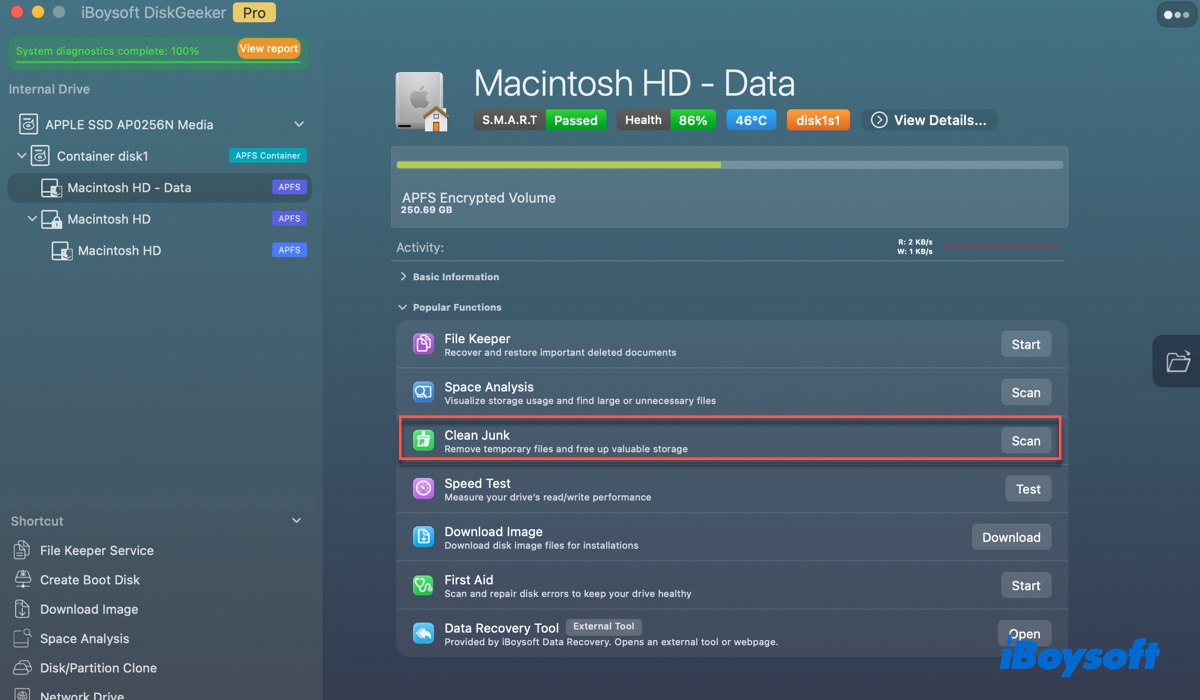
Step 3: Check the scanned results and add files you no longer need, then click Clean.
Step 4: Return to the interface and click Scan next to Space Analysis.
Step 5: Find items occupying substantial storage space.
Step 6: Select the unwanted files and click Delete.
After cleaning up, check how much free space remains on your Mac. Make sure you have enough room for the UTM virtual machine while retaining sufficient storage for your host macOS system and everyday files.
Step 1. Update macOS and Download UTM
First, update your Mac to macOS Monterey or later if it's not already. Keeping the host system up to date can help avoid compatibility issues when creating a virtual machine.
Next, download UTM from its official website or the Mac App Store.
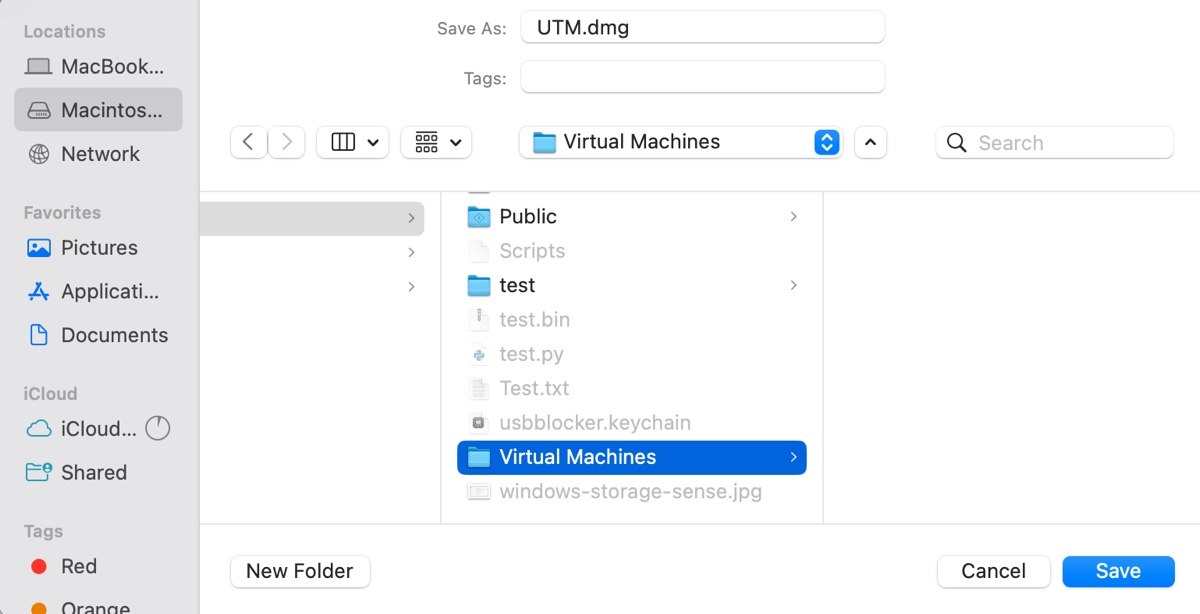
If you download UTM from its website, open the downloaded disk image and drag UTM into your Applications folder. Launch the application after installation.
If UTM is already installed, check whether an update is available and install it before proceeding.
Step 2. Download the macOS Golden Gate IPSW File
Before creating your virtual machine, download the macOS Golden Gate IPSW file from an official Apple source.
UTM does not provide a direct in-app download for a macOS IPSW file, so you need to obtain the installer separately.
| macOS Golden Gate IPSW Download | Versions |
| UniversalMac_27.2_26B123_Restore.ipsw | 27.2 |
| UniversalMac_27.0.1_26A434_Restore.ipsw | 27.0.1 |
| UniversalMac_27.0_26A428_Restore.ipsw | 27.0 |
You can download the latest macOS Golden Gate 27.2 IPSW file, then wait for the download to finish before continuing. This IPSW file takes around 27 GB, so ensure you have enough free storage for the download and the virtual machine.
Step 3. Create a New macOS Virtual Machine in UTM
Open UTM and click the **+** button to create a new virtual machine.
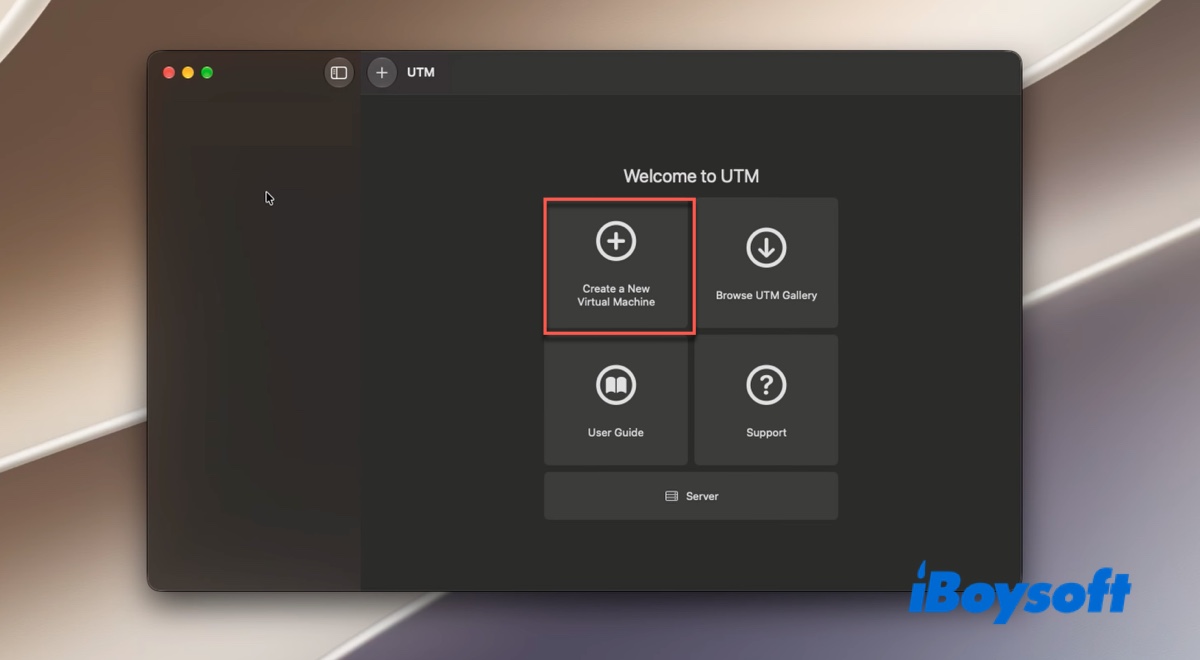
In the virtual machine wizard:
- Select Virtualize.
- Choose macOS 12+.
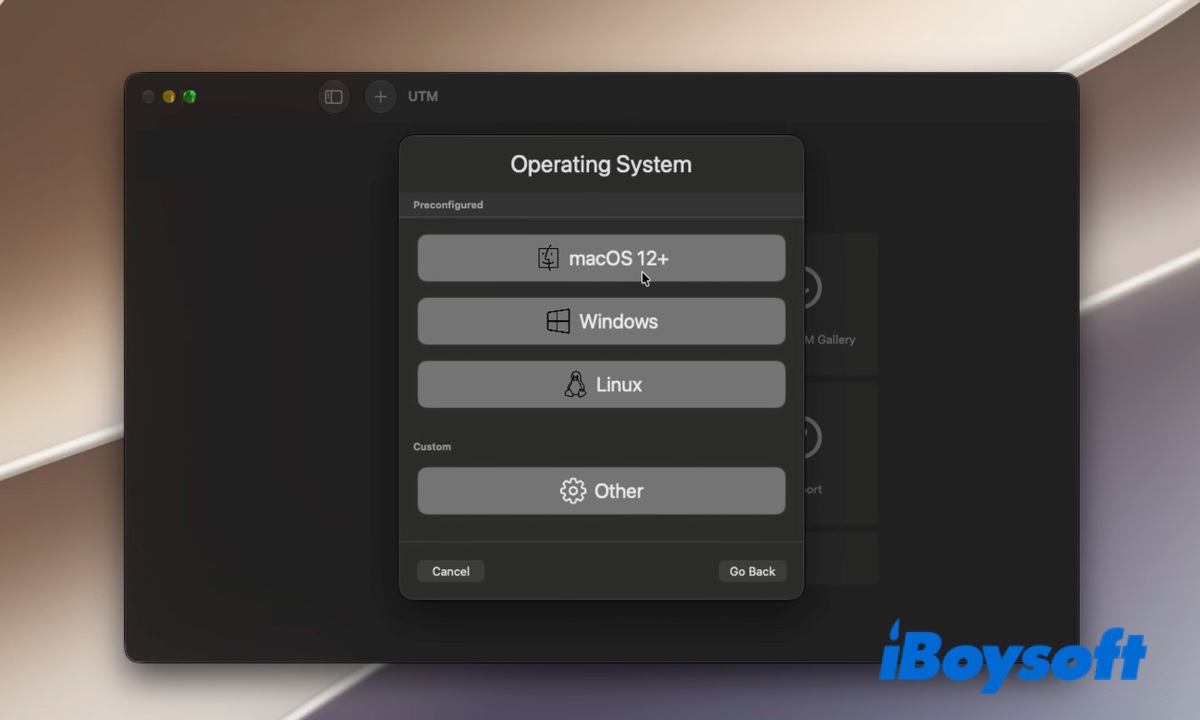
- Continue to the installation configuration screen.
Select virtualization rather than emulation. Virtualization is the appropriate option for running macOS on a supported Apple Silicon Mac.
Step 4. Import the macOS Golden Gate IPSW File
On the installation screen, select the option to browse for an IPSW file, then locate the file you downloaded in Step 2.
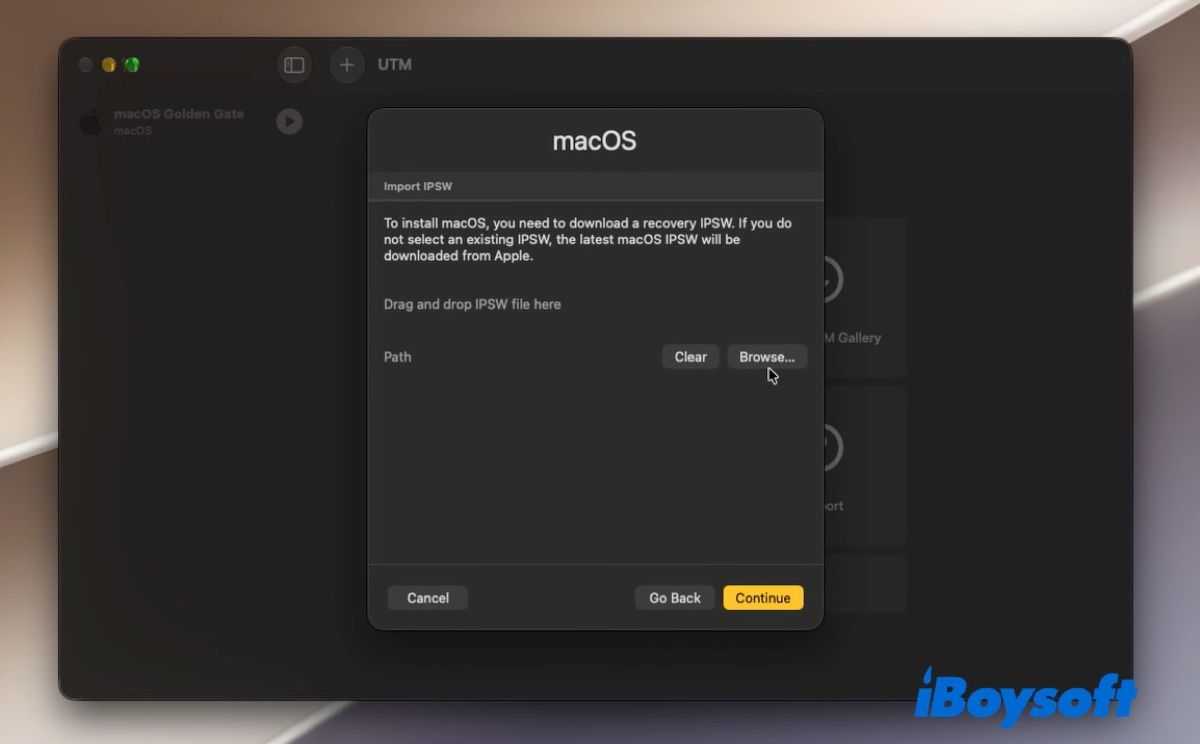
Select the macOS Golden Gate IPSW file and continue.
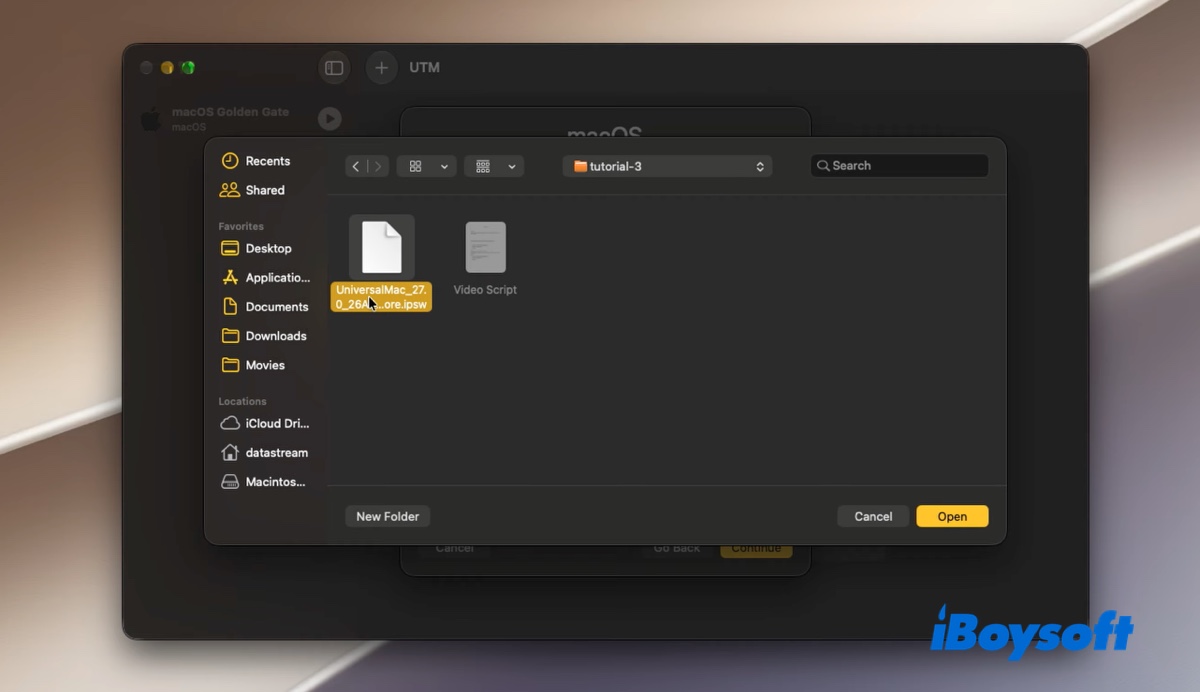
If the file is not accepted, verify that it is a valid IPSW file for the supported virtualization workflow and that your version of UTM and host macOS are compatible with it.
Follow the remaining on-screen instructions to continue configuring the virtual machine.
Step 5. Configure Memory and Storage
Next, configure the resources available to the virtual machine.
Memory: Choose an amount of RAM appropriate for your intended use (at least 8 GB). Avoid allocating so much memory that your host Mac no longer has enough to run smoothly.
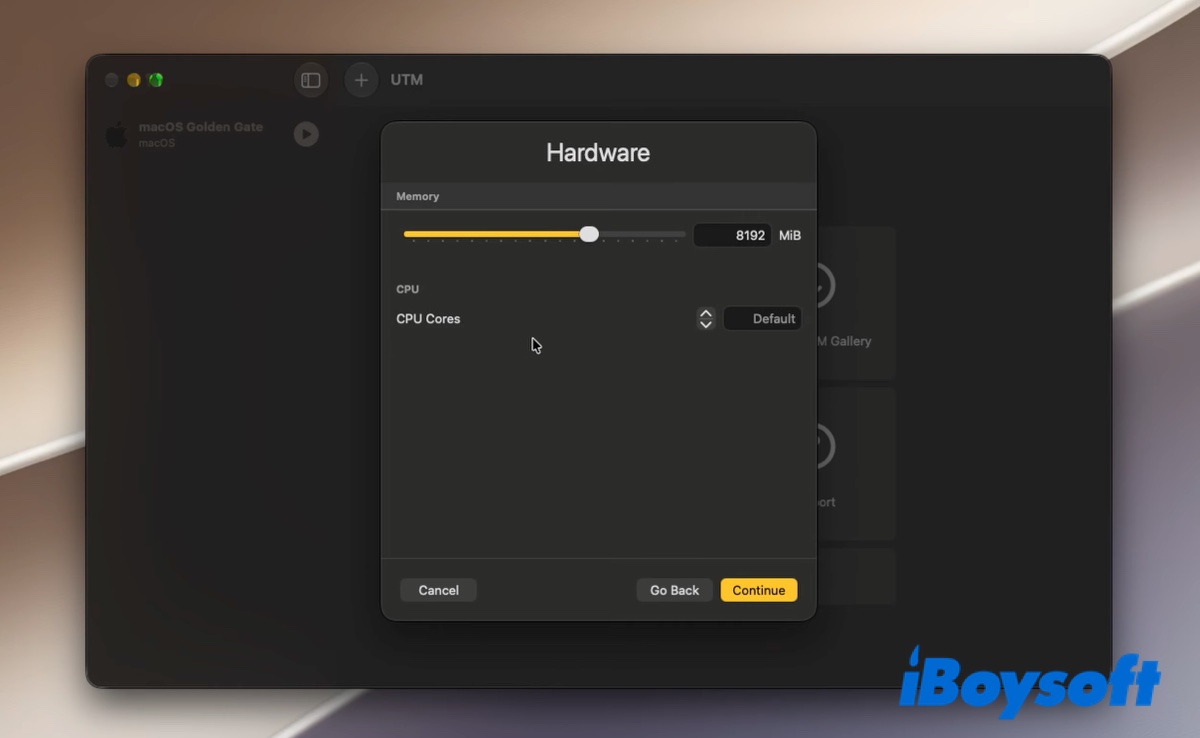
Storage: Create a virtual disk large enough to accommodate macOS, applications, system updates, and your files. The default is 64 GB, but 80 -100GB is recommended.
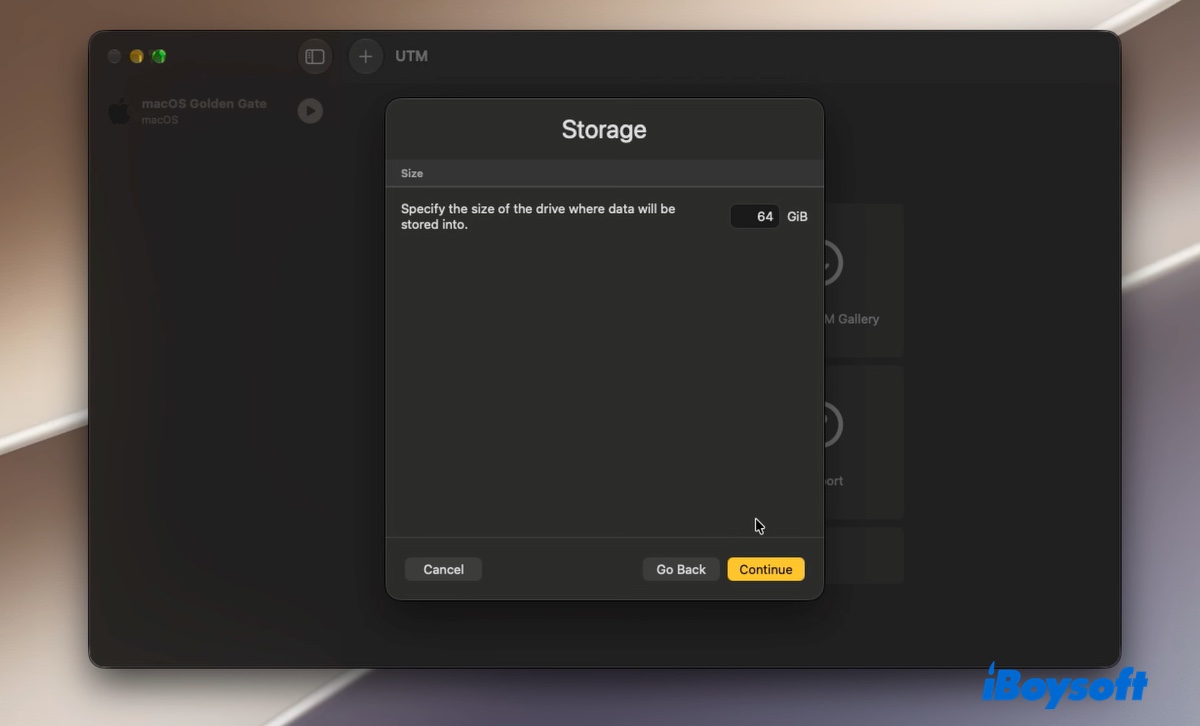
Remember that the configured virtual disk capacity is not necessarily consumed immediately. Actual usage increases as the guest operating system and its files occupy space. However, the virtual machine still needs sufficient room on your Mac's physical storage.
Review the configuration and save the virtual machine.
Step 6. Start the Virtual Machine and Install macOS Golden Gate
Select the newly created virtual machine in UTM and click the play button to start it.
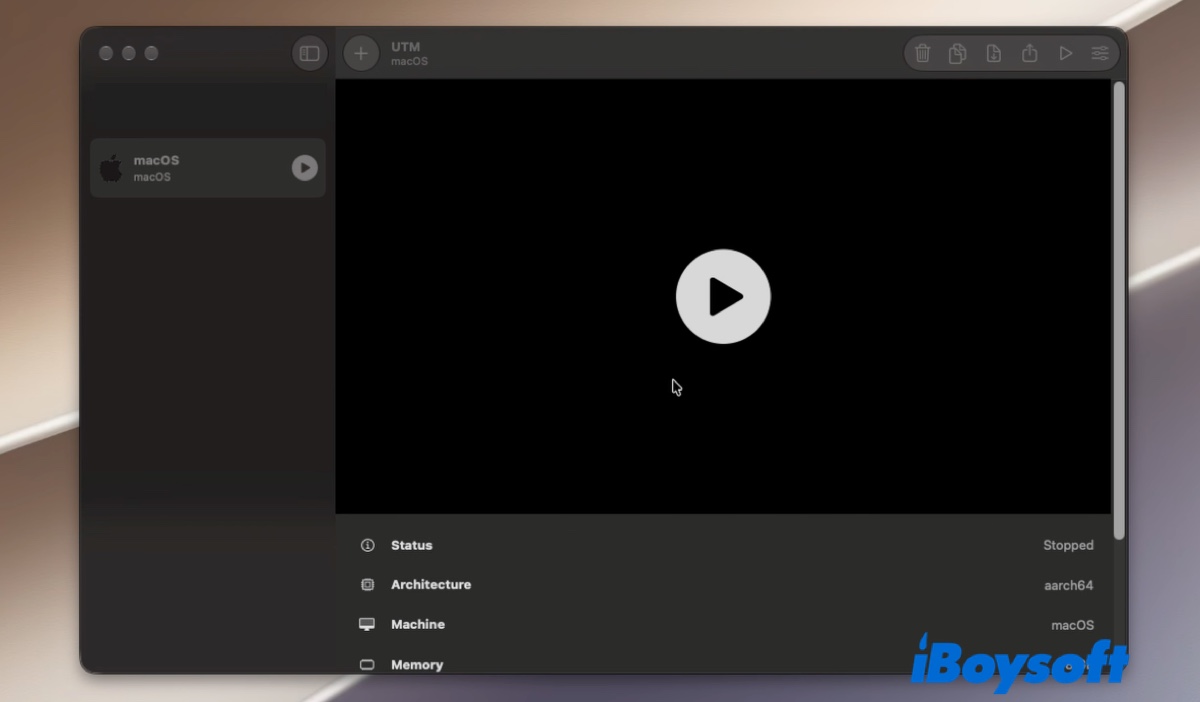
The virtual machine should boot into the macOS installer. Follow the on-screen instructions to complete the installation.
The process may take some time, depending on your Mac's performance, the installer, and the resources available to the virtual machine.
When the installation finishes, macOS Golden Gate should start and display the initial setup assistant.
Step 7. Complete the Initial macOS Setup
Follow the setup assistant to configure your virtual macOS environment. Depending on the options presented, you can:
- Select your country or region and language.
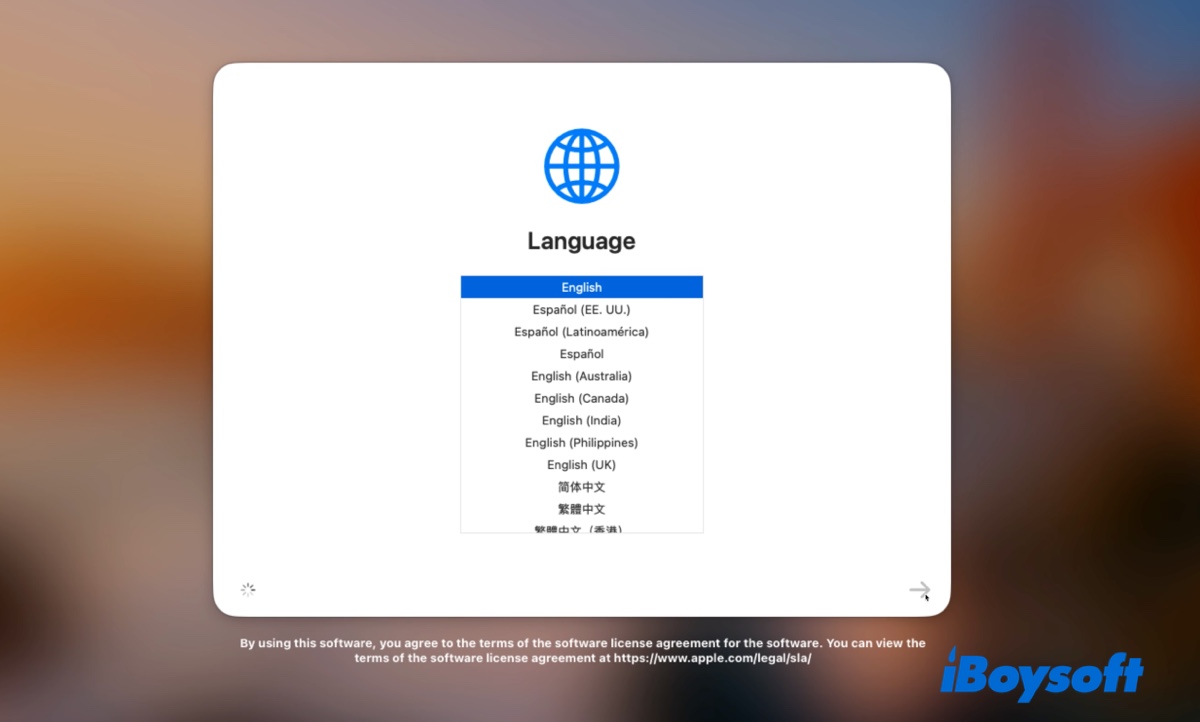
- Configure accessibility and other basic settings.
- Connect to a network if needed.
- Create a user account for the virtual machine.
- Review the available privacy and account options.
You may be able to sign in with an Apple Account to use supported Apple services, but this is not necessarily required to complete the initial setup.
Once setup is finished, you can use macOS Golden Gate inside UTM without replacing the macOS installation on your host Mac.
Tips: macOS guests in UTM's Apple Virtualization environment require an Apple Silicon host. If installing Golden Gate directly from an IPSW fails, check your host macOS version before retrying. Installing macOS Tahoe in a VM first and upgrading the guest afterward is an alternative worth considering.
Also read: macOS Golden Gate Issues, Bugs & Problems (Roundup)
FAQs About Installing macOS Golden Gate on UTM
- QCan I install macOS Golden Gate on an Intel Mac using UTM?
-
A
No. UTM's macOS virtualization support is Apple Silicon-only.
- QHow much storage do I need for a macOS Golden Gate virtual machine?
-
A
For a macOS Golden Gate virtual machine in UTM, the default 64 GB is the absolute minimum recommendation, but 80 GB to 100 GB is ideal depending on your intended usage.
- QWill installing macOS Golden Gate in UTM replace my current macOS?
-
A
No. UTM creates a separate virtual machine that runs macOS as a guest operating system. Your Mac continues to run its existing host operating system.
However, the virtual machine's files are stored on your Mac, so its storage usage affects the free space available to the host system.