Mounty vs iBoysoft NTFS for Mac, the specific comparison points are countless. I can share with you the key similarities and differences, alongside with a quick selector and comparison tables if you don’t have enough time to know the details.
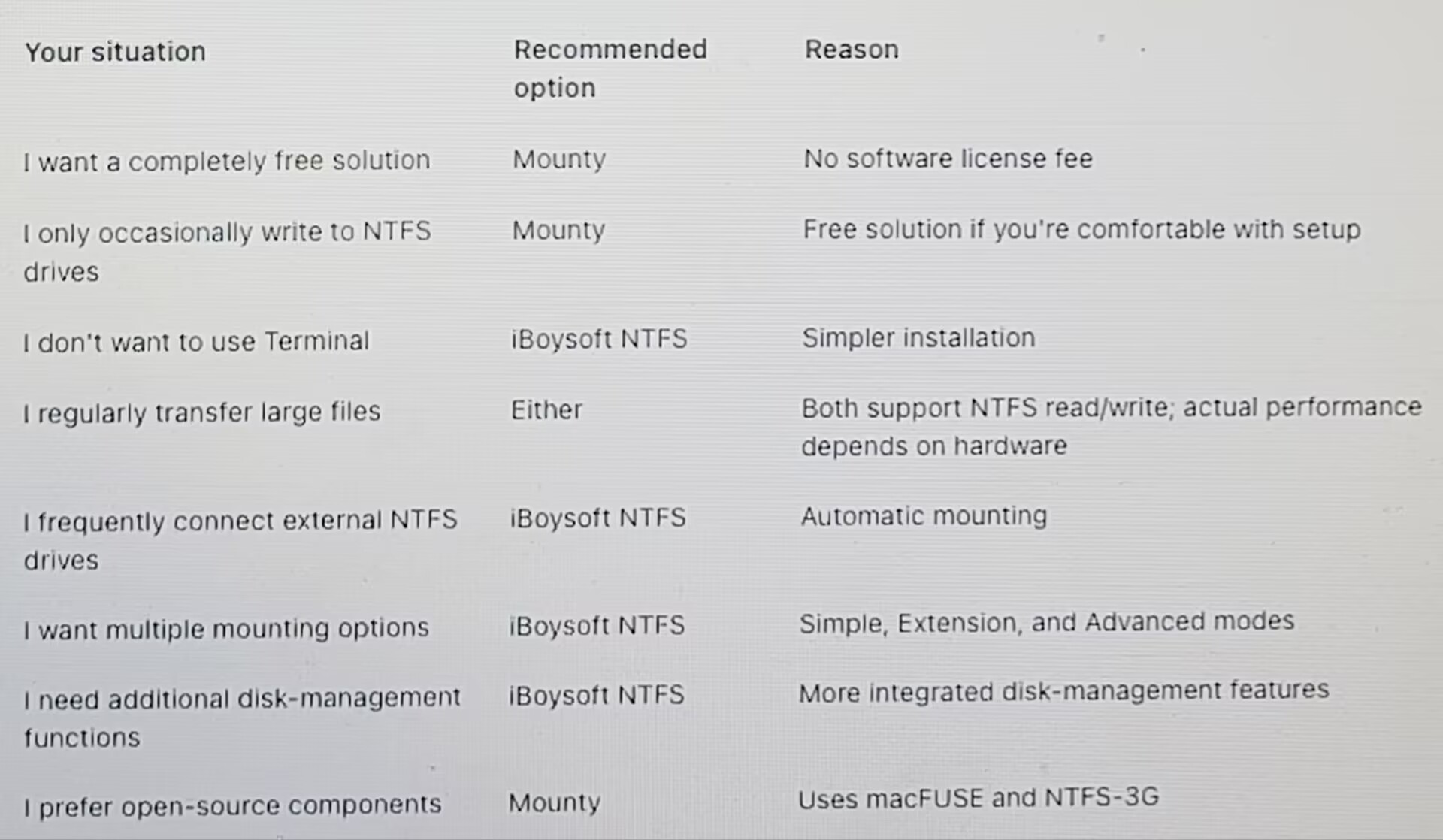
Quick selector table
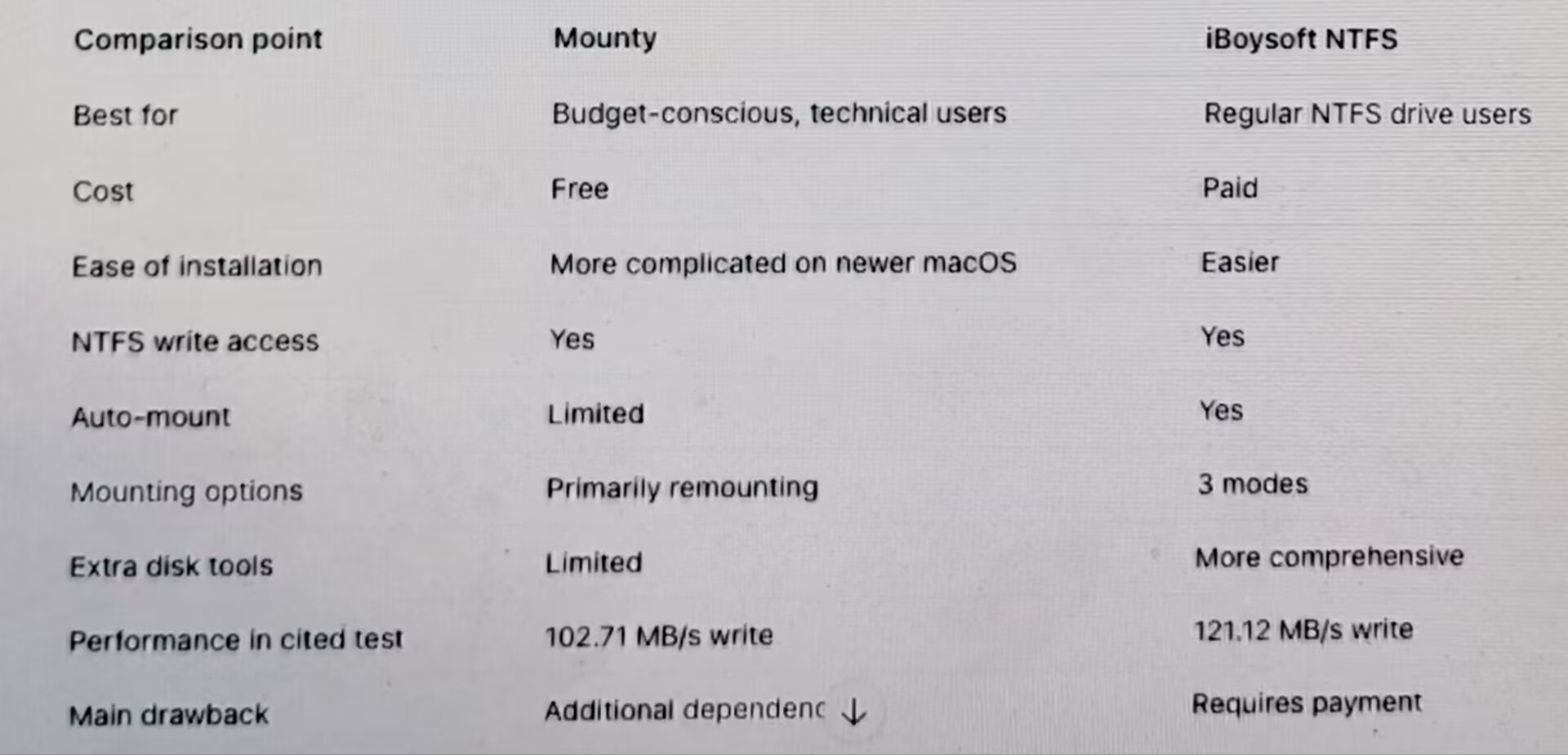
Quick comparison table
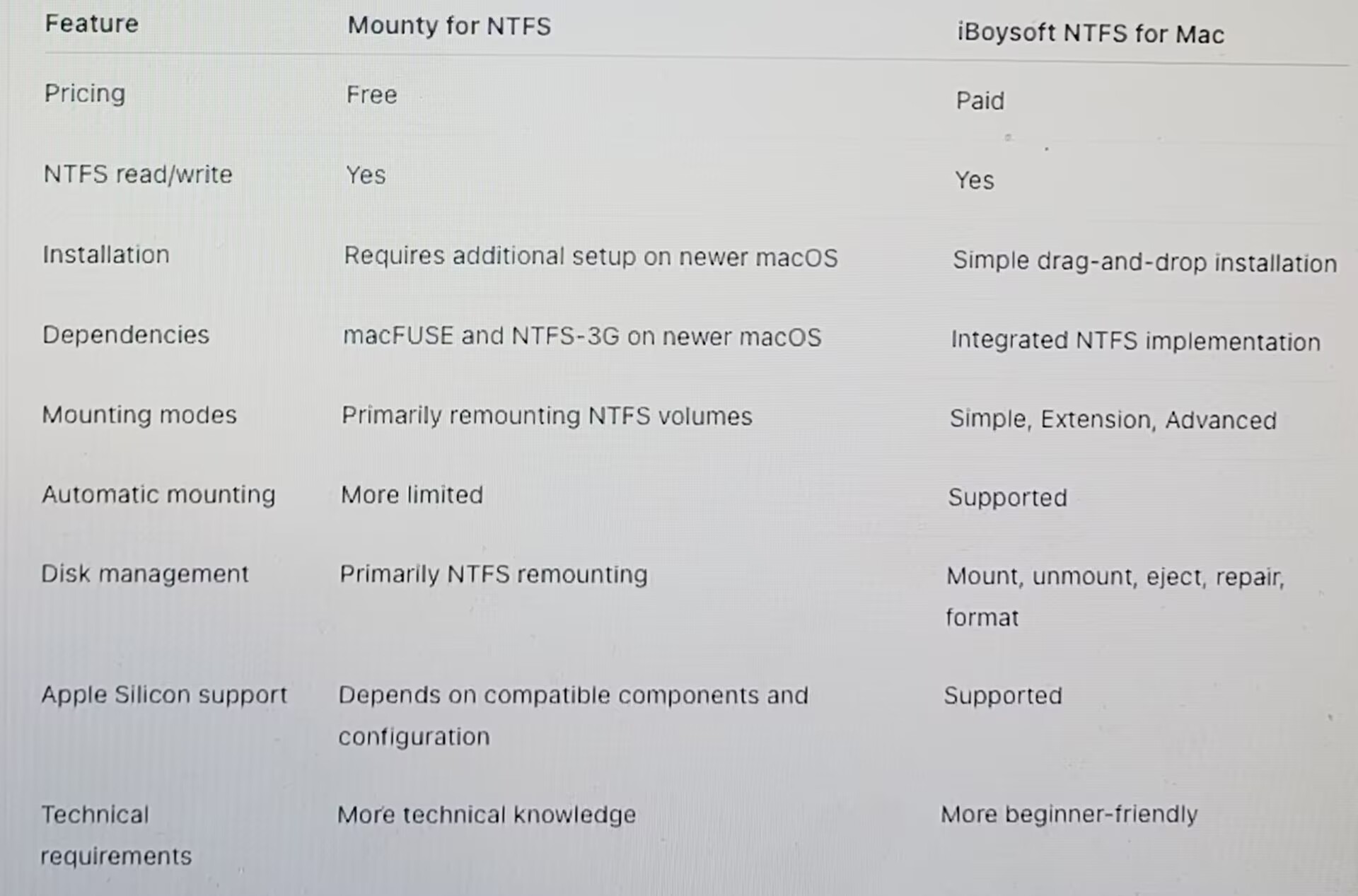
Key features comparison
Key Similarities Between Mounty and iBoysoft NTFS for Mac
Although they use different technical approaches, both applications aim to solve the same problem: enabling Mac users to write to NTFS-formatted storage devices.
Their main similarities include:
- NTFS read/write access: Both allow users to copy, move, edit, and delete files on NTFS-formatted external drives.
- No reformatting required: Neither requires users to erase or convert an existing NTFS drive to enable write access.
- Cross-platform file transfers: Both are useful for transferring files between Windows PCs and Macs.
- External storage support: Both are designed to work with NTFS-formatted external storage devices.
- Support for newer Macs: Both have solutions for modern macOS systems, although their installation requirements and underlying mechanisms differ.
Key Differences Between Mounty and iBoysoft NTFS for Mac
The biggest difference is their underlying technology and the amount of configuration required.
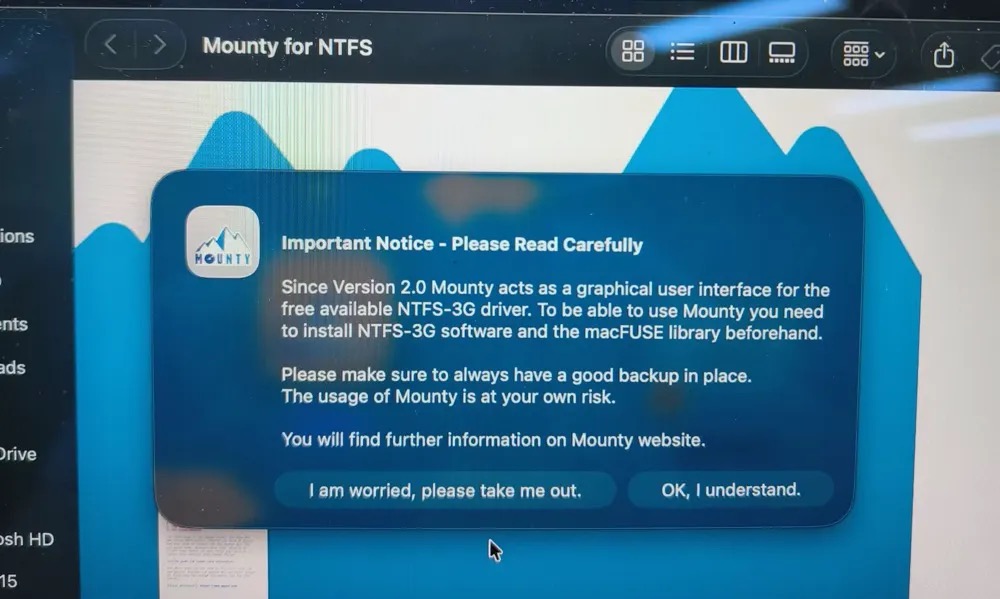
Mounty is a free NTFS utility that works as a graphical interface for NTFS-3G, using macFUSE to support filesystem operations on newer macOS versions.
Its main advantages are:
- Completely free to use.
- Lightweight menu bar interface.
- Open-source underlying filesystem components.
- Suitable for occasional NTFS write operations.
However, its installation can be complicated. On macOS Ventura and later, users need to install additional components, including macFUSE and NTFS-3G. They may also need to approve security settings and restart their Mac.
Mounty is therefore more suitable for users who are comfortable with Terminal commands and troubleshooting software dependencies.
iBoysoft NTFS for Mac is a commercial NTFS utility that offers a more integrated installation and mounting experience.
Its main advantages include:
- Simple drag-and-drop installation.
- Automatic NTFS mounting.
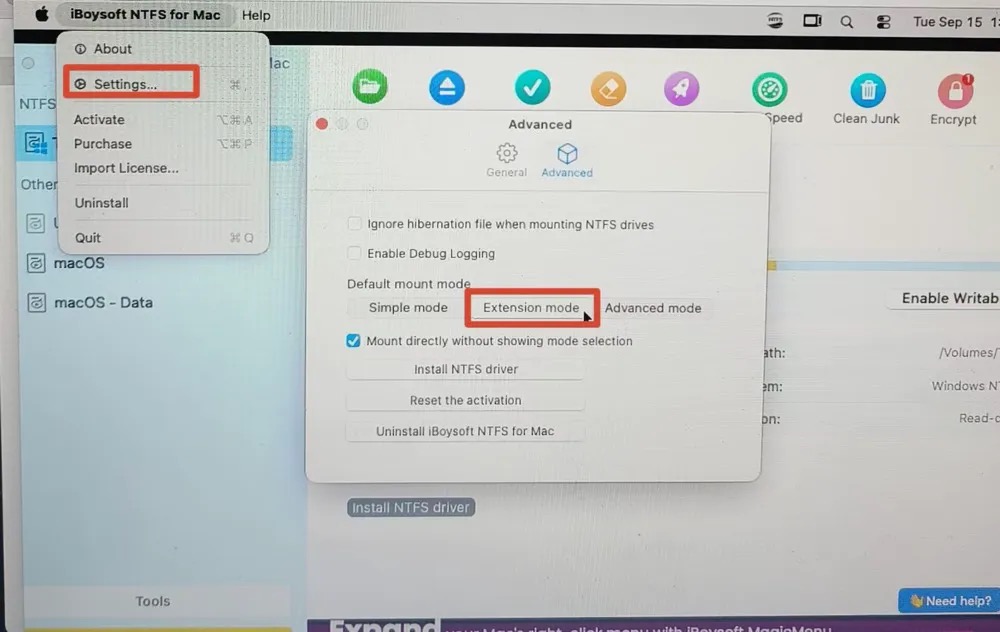
- Three mounting modes: Simple, Extension, and Advanced.
- Additional disk-management functions, including mounting, unmounting, ejecting, repairing, and formatting.
- Support for Intel-based and Apple Silicon Macs.
Its mounting modes offer different approaches:
- Simple Mode: Allows manual mounting without installing a separate NTFS driver.
- Extension Mode: Uses Apple’s FSKit framework on supported newer macOS versions, avoiding a traditional kernel extension.
- Advanced Mode: Uses a dedicated driver to provide automatic mounting and NTFS write access.
The main disadvantage is that it is paid software. However, its more integrated workflow may be worthwhile for users who regularly work with NTFS drives.
Which one shoud you choose?
The better choice depends on how frequently you use NTFS drives and how much convenience you expect.
Choose Mounty for NTFS if:
- You want a free NTFS write solution.
- You only occasionally transfer files to NTFS drives.
- You are comfortable using Terminal commands.
- You don’t mind installing and configuring macFUSE and NTFS-3G.
- You can troubleshoot mounting and compatibility issues yourself.
Choose iBoysoft NTFS for Mac if:
- You frequently transfer files between Windows and macOS.
- You prefer a straightforward installation process.
- You want automatic NTFS mounting.
- You need additional disk-management functions.
- You prefer having multiple mounting modes to accommodate different macOS configurations.