I’ve encountered similar behavior with an external WD SSD on my MacBook Pro. If you can browse the drive and open folders normally in Finder, but Spotlight and Finder search cannot find them, the problem is often related to Spotlight indexing, search scope, or the drive’s file system rather than missing files.
I’d check the following in order.
1. Confirm that Finder is searching the correct drive
First, make sure the USB-C SSD is mounted and that you’re searching the intended volume, not just your Mac’s internal storage.
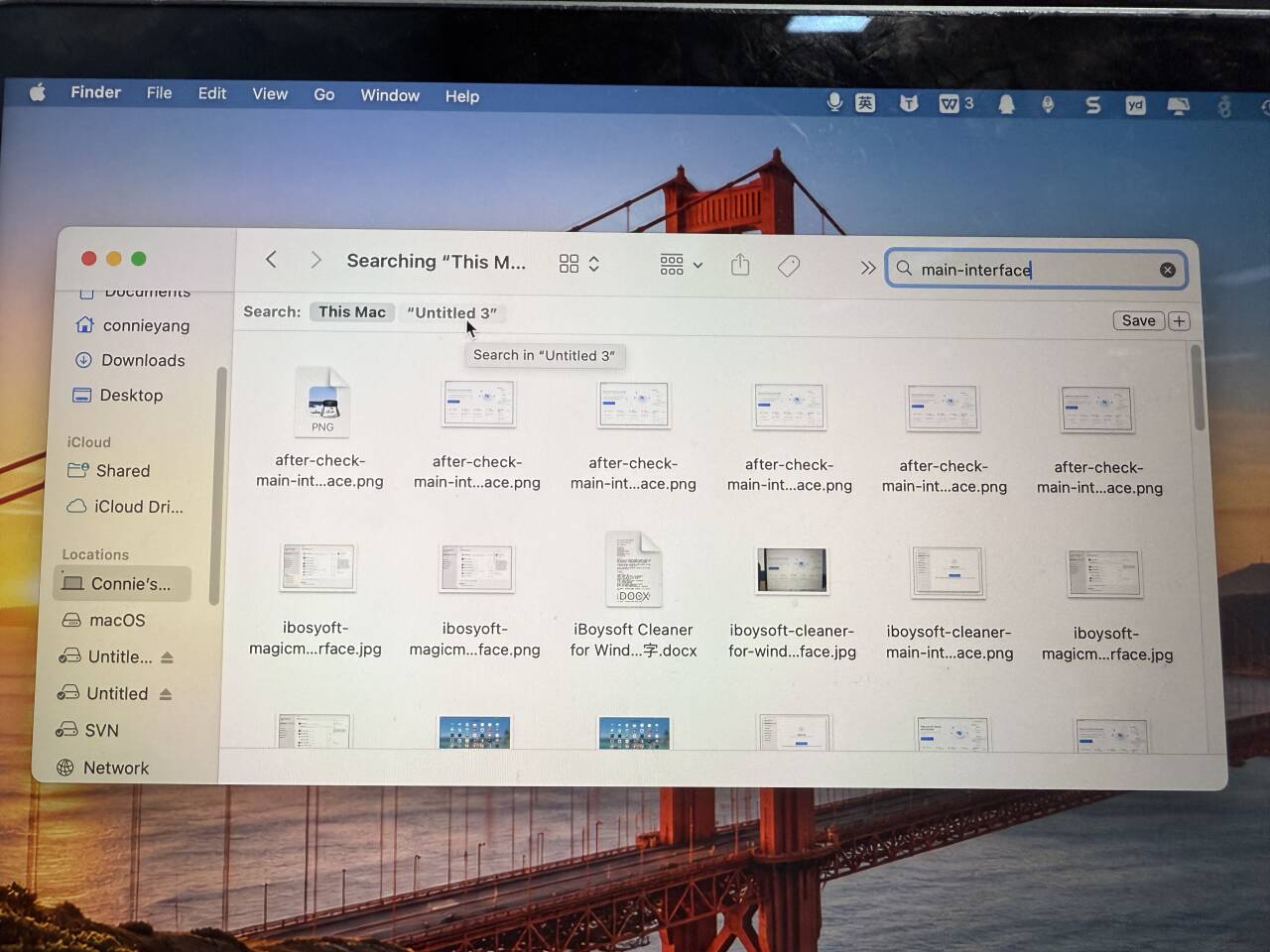
Open Finder, select the external SSD in the sidebar, and enter a file name in the search bar.
When the search options appear, check whether Finder is searching This Mac or the selected drive. Choose the external drive’s name if you want to limit the search to that volume.
This is worth checking because Finder can return results from the internal disk while overlooking the external volume simply because of the selected search scope.
2. Check whether the SSD is excluded from Spotlight indexing
macOS allows users to exclude specific disks and folders from Spotlight searches.
Go to:
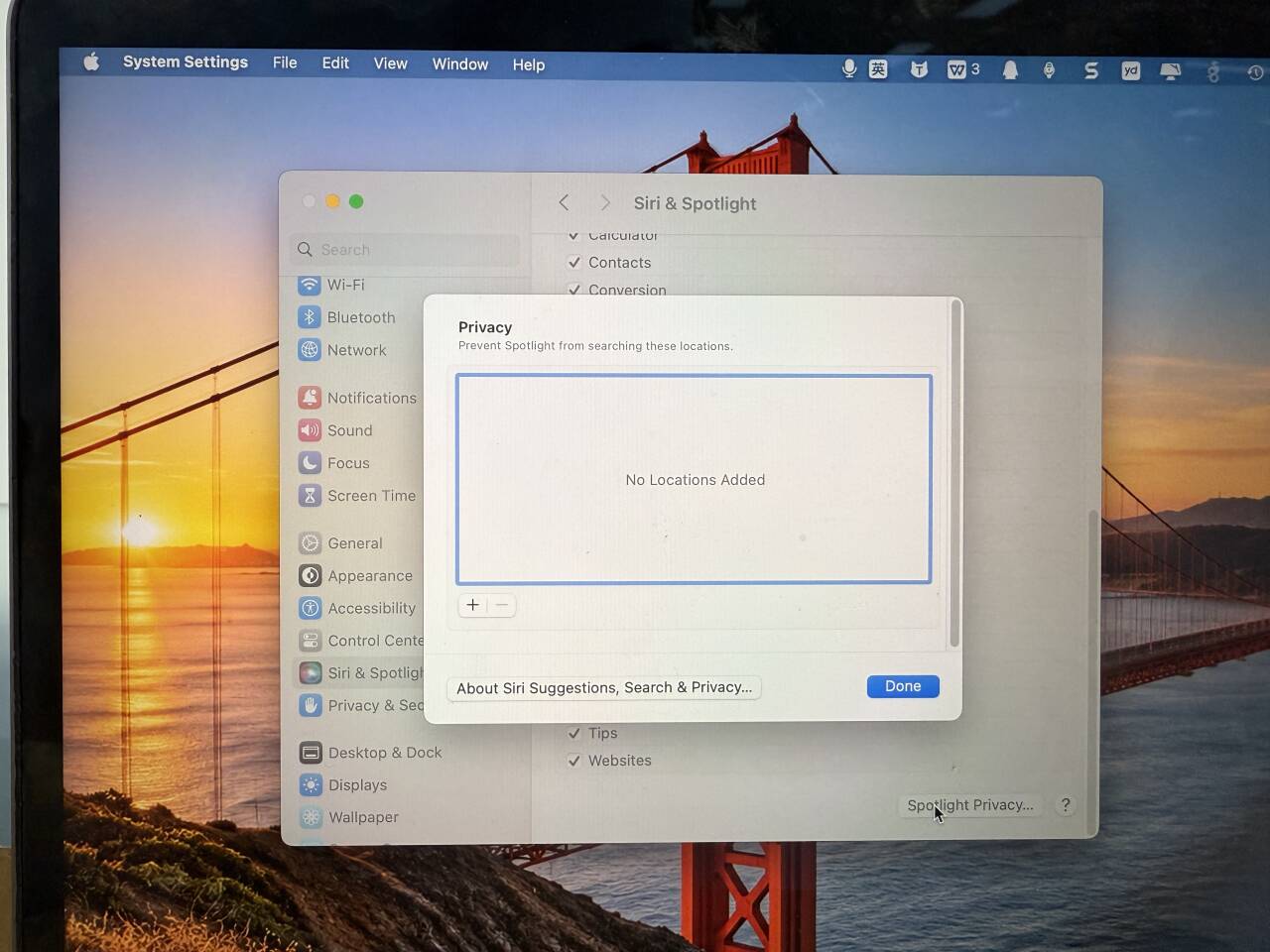
System Settings > Siri & Spotlight > Spotlight Privacy (the exact label or location may vary by macOS version).
Check whether your external SSD or any of its parent folders appears in the privacy list.
If the SSD is listed, select it and remove it from the exclusion list. Spotlight should then be allowed to index its contents again.
3. Rebuild the Spotlight index for the external SSD
If the drive isn’t excluded but searches still return no results, its Spotlight index may be incomplete, outdated, or corrupted.
You can try rebuilding the index for that volume instead of resetting Spotlight across your entire Mac.
Open Terminal and run:
sudo mdutil -i on /Volumes/YourDriveName
sudo mdutil -E /Volumes/YourDriveName
Replace YourDriveName with the actual volume name of your SSD. If the volume name contains spaces, make sure to use the correct path or escape the spaces.
The first command enables indexing for the specified volume, while the second requests that macOS erase and rebuild its existing Spotlight index.
Important: Reindexing can take some time, especially if the SSD contains many files and folders. Keep the drive connected and avoid disconnecting it while indexing is in progress. Search results may not appear immediately.
4. Check the SSD’s file system: APFS, exFAT, or NTFS
The drive’s file system is another important factor.
- APFS: This is Apple’s native file system and generally offers the most straightforward integration with macOS Spotlight indexing.
- exFAT: macOS supports reading and writing exFAT volumes, but Spotlight indexing behavior can differ from APFS. Check whether indexing is enabled and whether the volume is being indexed correctly.
- NTFS: macOS can generally read NTFS volumes, but its built-in NTFS support is read-only. Third-party NTFS drivers and their mounting or indexing behavior can also affect how the volume interacts with macOS search. You can install this tool and try a safer and more stable alternative like iBoysoft NTFS for Mac.
You can check the file system by opening Disk Utility, selecting the external SSD, and looking at its format information.
I wouldn’t recommend formatting the SSD just to fix a search problem. If the drive is accessible and the files are intact, investigate indexing and file-system compatibility first.
5. Follow a complete Spotlight troubleshooting guide
If none of the above steps help, there may be additional indexing-related issues worth checking.
I found this guide useful for understanding why an external drive might not appear in Mac search results and how to troubleshoot its indexing:
How to Fix an External Hard Drive That Can’t Be Searched on Mac
It covers additional troubleshooting steps for external drive search and Spotlight indexing.
Hopefully, checking the search scope and rebuilding the index for the affected volume will solve the problem without requiring you to reformat the SSD.